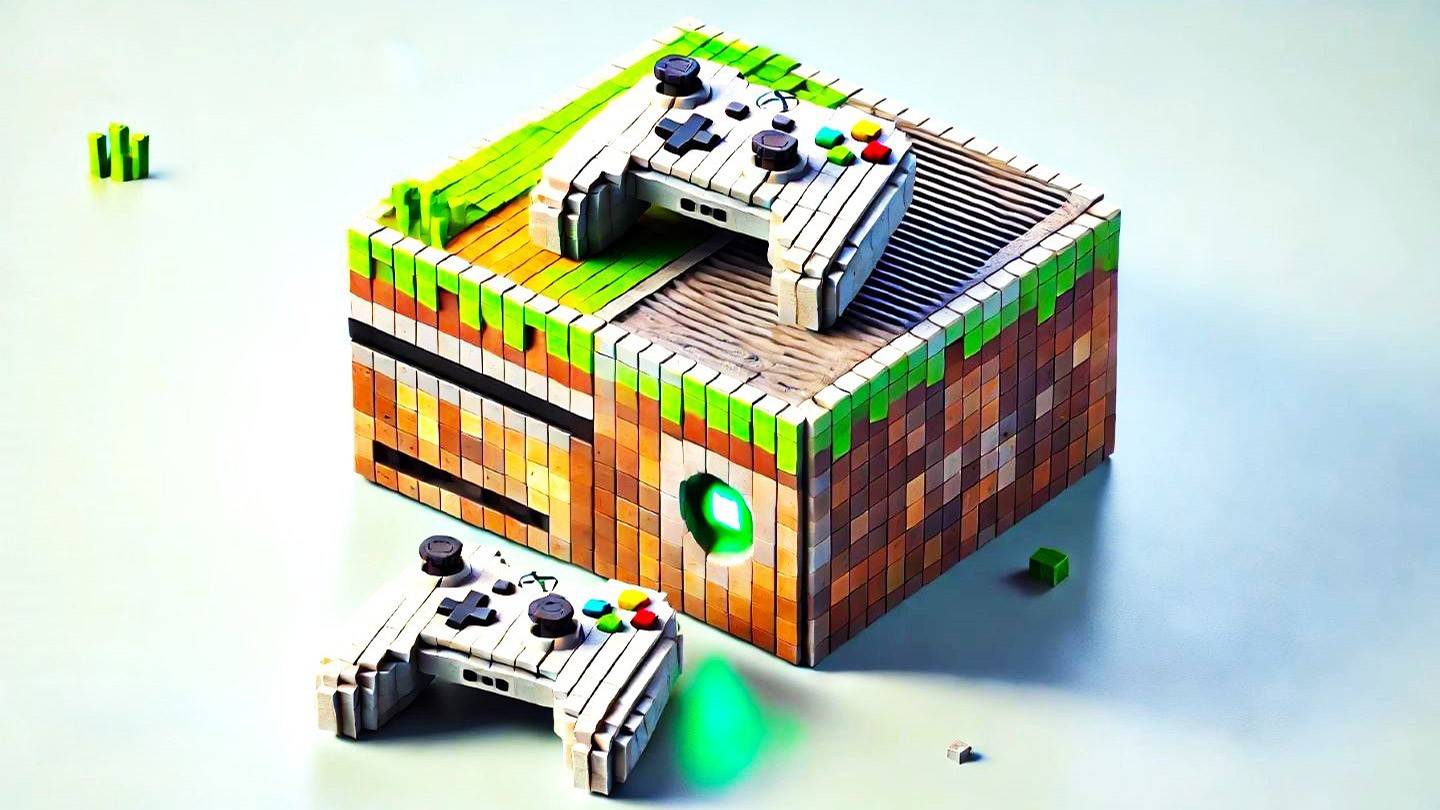
Even after so many years, this project remains at the forefront of sandbox gaming. With its endless journeys, dynamic world generation, multiplayer support, and boundless creative potential, it continues to captivate players. Let’s explore the essential steps to get started.
Table of Content
Creating a Minecraft Account How to Start Your Journey PC (Windows, macOS, Linux) Xbox and PlayStation Mobile Devices (iOS, Android) How to Exit Minecraft 0 0 Comment on this
Creating a Minecraft Account
To play Minecraft, you’ll need a Microsoft account for login. Open your browser and visit the official website. In the top-right corner of the screen, locate and click the "Sign In" button. An authorization window will open; select the option to create a new account.
 Image: minecraft.net
Enter your email address and choose a strong password for your Minecraft account. Pick a unique username; if it’s already taken, the system will suggest available alternatives.
 Image: minecraft.net
Next, confirm your email address by entering the verification code sent to your inbox. If you don’t receive the email promptly, check your "Spam" or junk folder.
Once verified, a profile is created and linked to your Microsoft account. You can now purchase the game if you haven’t already. Select your preferred version on the official website’s store page and follow the prompts to complete the transaction.
How to start your journey
PC (Windows, macOS, Linux)
On PCs, Minecraft is available in two main versions: Java Edition and Bedrock Edition. Java Edition supports Windows, macOS, and Linux and can be downloaded from the official Minecraft website. After installing the launcher, log in with your Microsoft or Mojang account and select the desired game version to launch.
 Image: aiophotoz.com
Upon first launch, an authorization window will appear. Enter your Microsoft account credentials to log in. To play solo, click the "Create New World" button. This opens a settings menu where you can choose between "Survival" mode for a classic experience or "Creative" mode with unlimited resources.
For multiplayer fun, open the "Play" section from the main menu and navigate to the "Servers" tab. Here, you can join public servers or input the IP address of a private server if invited. To play with friends in your own world, load or create one, then enable multiplayer settings.
Xbox and PlayStation
 Image: youtube.com
On Xbox consoles (including Xbox 360, One, and Series X/S), log in via the Microsoft Store. After downloading and installing the game, launch Minecraft from your console’s home screen. Using a Microsoft account allows you to sync achievements and purchases across devices.
Minecraft is also available on PlayStation 3, 4, and 5. Purchase and download it through the PlayStation Store. Once installed, start the game from the home screen. Log in with your Microsoft account to enable cross-platform play features specific to these versions.
Mobile Devices (iOS, Android)
Buy Minecraft via the App Store for iOS or Google Play for Android. After installing the app, log in using your Microsoft account. The mobile version supports cross-platform play with other devices.
 Image: storage.googleapis.com
Note that Bedrock Edition supports cross-play across all listed platforms, allowing players to join together regardless of their device. Java Edition, however, is PC-only and does not support cross-platform play.
In summary, while launch procedures vary by platform, Bedrock Edition’s cross-play capability ensures seamless cooperative gameplay across different devices.
How to Exit Minecraft
Exit the game via its menu. On PC, press Esc to open the pause screen, then click "Save and Quit." This returns you to the main menu; close the program completely from there if desired.
 Image: tlauncher.org
On consoles, open the pause menu using your controller’s designated button. Select "Save and Quit" to end the session. To fully close Minecraft, press the console's "Home" button, highlight the game in the app list, and choose exit.
On mobile devices, tap "Save and Quit" from the in-game menu. To completely close the app, use your device’s system interface: on Android, swipe up to view recent apps and swipe Minecraft away; on iOS, double-click or swipe up (depending on model) to access the app switcher and swipe the app off-screen.
Now that you understand the basics, enjoy exploring the blocky world of Minecraft on any device, with plenty of discoveries waiting in both solo and cooperative modes!